19 March 2026

Ontrack Staff Hub

The new and updated features for the 4.50 release are as follows:

Absence reporting
Header Business impact Affected topics

Absence reporting authorisation and approval

A new status indicator on the new Planned absence page provides clear visibility of each request’s progress, from submission through to approval or rejection.

Absence requests submitted by learners or created by staff can also be set to approve automatically. For example, you might want certain reasons, such as bereavement, to be approved without manual intervention. The default setting for automatic approval is No, so you must configure the relevant absence reasons in reference data.

You can also configure each absence type with specific requirements, such as whether approval is needed, whether supporting evidence must be uploaded, or whether additional notes are required. These settings give you greater control and help ensure consistency across the reporting process.

Additional roles are required for absence reporting. For more information, go to EBS Central user management.

Planned absence

Absence reasons

Correspondence manager
Header Business impact Affected topics

Bulk correspondence

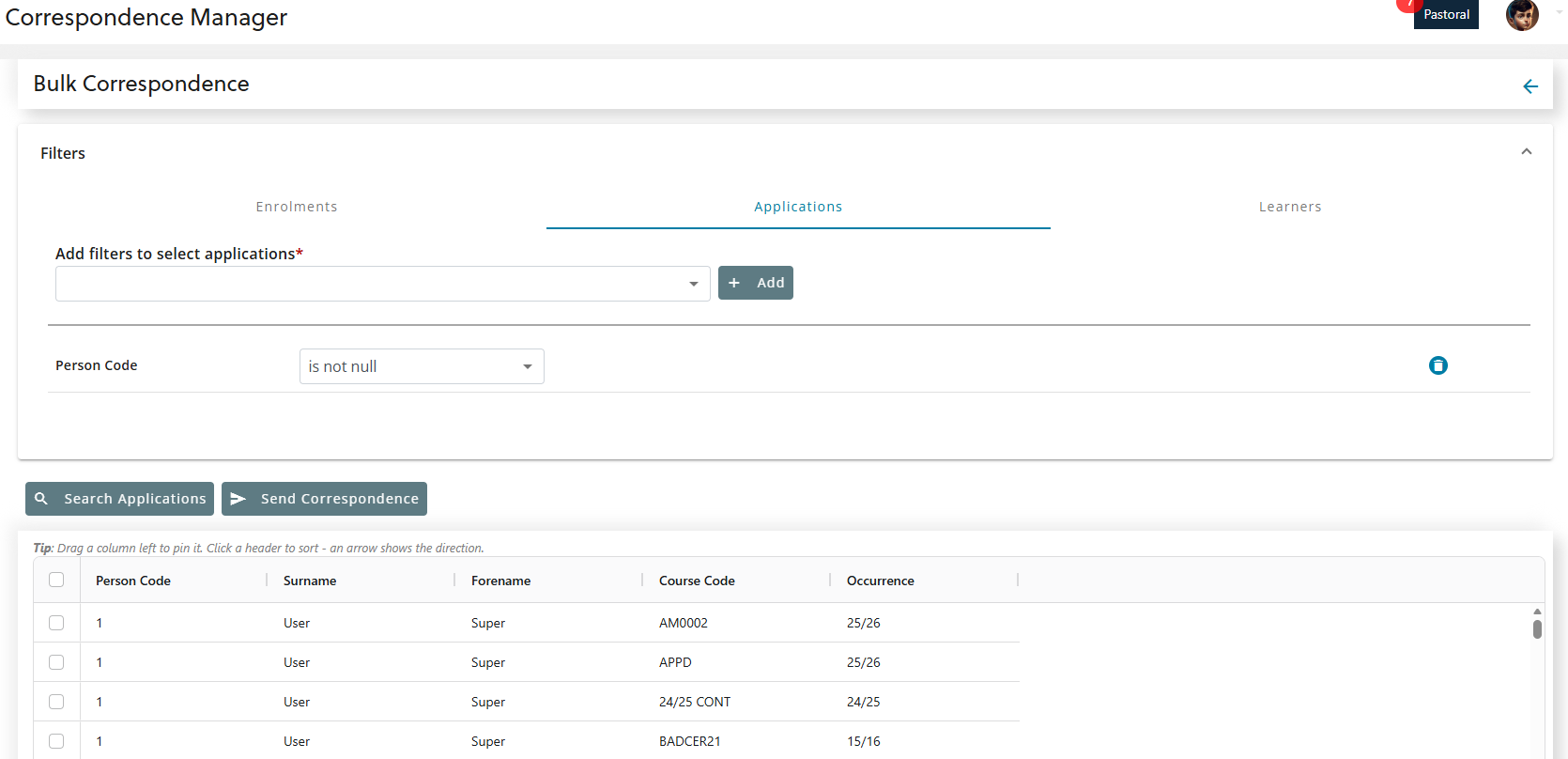
Staff can now send correspondence to multiple learners using the bulk correspondence feature for correspondence manager in Ontrack Staff Hub.

On selecting Bulk correspondence, you can switch between the Enrolments, Applications, and Learner tabs. Each tab includes a drop-down list that allows the user to select filters relevant to that data type. When you choose a learner type, the system automatically uses the correct view and shows only the relevant filter columns in the drop-down. This ensures that you can generate correspondence for an accurate, customised learner list.

Additional roles are required for bulk correspondence. For more information, go to EBS Central user management.

Correspondence manager

Generate and send correspondence to multiple applicants

Staff can now generate and send correspondence to multiple applicants from the following pages:

  • Course applications

  • Course enrolments

  • Course interviews

Additional roles are required for sending correspondence to multiple applicants. For more information, go to EBS Central user management.

Correspondence manager

Course links pane

Correspondence manager updates

The following changes have been made to improve staff use of correspondence manager:

  • Generate correspondence from the learner’s enrolment screen in Ontrack so that you can send a predefined template to the learner by letter, email, or SMS.

  • Edit the template in the correspondence wizard for all learners at the same time to save time when updating multiple learners.

  • Select a default reply‑to email address and display name in the email template. In many cases, the from address is a no‑reply account that isn’t monitored.

Correspondence manager

Fees
Header Business impact Affected topics

View and manage E-Payments in Ontrack Hub

Staff can now view and manage E-Payments in Ontrack Hub as follows:

View E‑Payments

A new E‑Payments section is now available on the Learner Fees page in Ontrack Hub. This update gives staff a single location to view and track all payment transactions.

The section displays key details, including:

  • E‑Payment ID

  • Payment date

  • Amount

  • Payment status

  • External reference

Manage E‑Payments

Staff can now accept, decline, and resubmit e‑payments that have a status of Requested.

Additional roles are required to enable staff to manage E-Payments. Staff without this permission can view transactions only. For more information, go to EBS Central user management.

After the role is enabled, staff will see a check-box next to E-Payments that are in a Requested status and can take action on them.

Accept or decline E‑Payments

Staff can accept or decline one or more requested E‑Payments. A confirmation dialogue appears before any action is applied.

When a payment is accepted:

  • A receipt is created in the Receipts section.

  • The transaction status updates to Paid.

Resubmit E‑Payments

Staff can resubmit a requested E‑Payment. Only one E-Payment can be resubmitted at a time. A confirmation dialogue appears before resubmission.

When resubmitting a payment:

  • Ontrack Hub opens the payment provider’s form, similar to a MOTO transaction.

  • After successful resubmission, a new receipt is created and the status updates to Paid.

Learner links pane

Enhancements to the fees page in Ontrack Hub

Minor enhancements have been implemented in the Fees page to provide staff with a more organised view of fee‑related information as follows:

Organised Page Sections
The Fees page now includes three clearly separated sections, each with a clear section title:
  • Balance

  • Fees

  • Receipts

This structure helps staff quickly locate outstanding balances, fees, and receipts that are useful during MOTO payments.

Collapse and Expand Functionality

Each section now includes a toggle control. Staff can select any section header (Balance, Fees, or Receipts) to expand or collapse it.

Learner links pane

View complete receipt information

The Receipts section on the Learner Fees Page in Ontrack Hub has been improved so staff can now view complete receipt details, similar to what is available in the EBS Central. These enhancements help staff verify receipt numbers and matched fees with greater accuracy.

Receipt number column added
A new Receipt Number column now appears in the receipts table, making receipts easier to track and reference. Go to Learner Fees Page > Receipts, the table now includes a clear Receipt Number column for each record.

View Complete Receipt Details

Selecting a receipt number now opens a pop‑up displaying full receipt details, giving staff a clearer picture of how payments were applied.

In the Receipts table, select any Receipt Number. A new row appears under the selected record, showing:

  • Matched Fee Description

  • Fee Type

  • Fee Date

  • Payment Method

  • Matched Amount

Learner links pane

Fund manager
Header Business impact Affected topics

Editable grid saving using sort button

Sorting the editable grids now correctly saves any pending changes. If there are errors, validation messages will also be displayed when the sort button is clicked.

Fund manager

Group management
Header Business impact Affected topics

Group management

The new group management module enables staff to manage curriculum and course groups in EBS Ontrack Staff Hub as follows:

Curriculum and course group management

  • Manage curriculum setup related to course group management.

  • Search for a course.

  • View groups created for a course.

  • Add or inactivate a group for a course.

Learner and group membership management

  • Search for learners.

  • View a learner’s group membership for a course.

  • Change a learner’s group membership for a course, such as adding, removing, or transferring learners between groups.

  • Perform group membership operations in bulk for multiple learners on a course.

Additional roles are required for group management. For more information, go to EBS Central user management.

Group management

WAL IDP
Header Business impact Affected topics

One page profile enhancements for IDP Information

Staff can now choose to populate the One page profile with information from specific IDP sections. The changes are as follows:

A populate one page profile option is now available for the following IDP sections:

  • 1C – Profile (About me)

  • 2A – Additional Learning Needs – Description

  • 3A – Record of Information – Development Information

  • 3B – Record of Information

  • 3C – Transition

  • 3D – Travel Arrangements

When selecting this checkbox, staff see a warning message in red:

  • Information will be visible to all staff.

If the checkbox is selected, the learner’s information from the corresponding IDP section is copied to—and displayed in the one page profile.

Create an IDP

Section identifiers added to IDP report headers

IDP report headers now include the section identifier to make it easier to distinguish between different sections. Each header now displays the word Section followed by the alphanumeric identifier before the section name.

This update aligns the report layout with how sections are labelled within the IDP itself.

Not applicable

Interview management
Header Business impact Affected topics

Interview management

This release introduces a comprehensive Interview Management experience within Ontrack. It provides a centralised landing page, enhanced controls, and powerful scheduling tools that allow staff to efficiently create, manage, and monitor interview slots.

This release includes:

  • A new Interview Management landing page

  • Search and filtering tools

  • Slot creation (single and recurring)

  • Editing, deleting and duplication tools

  • Booked Learner visibility features

  • Role-based permissions

  • Concierge integration

Additional roles and institution settings are required for interview management. For more information, go to EBS Central.

Interview management

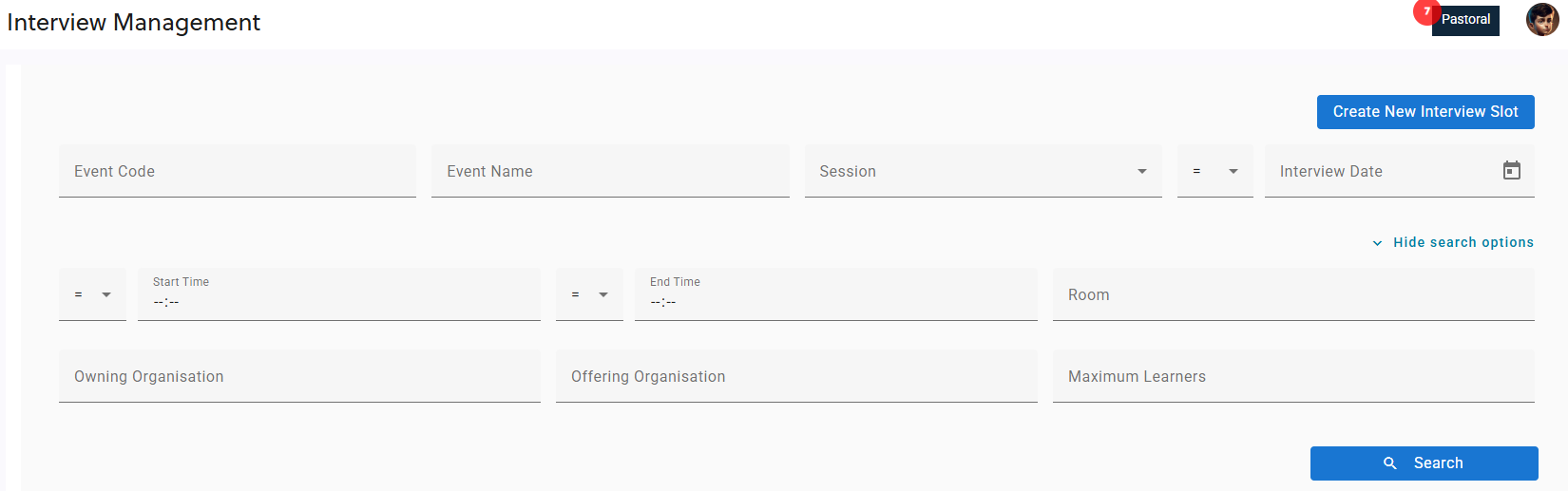
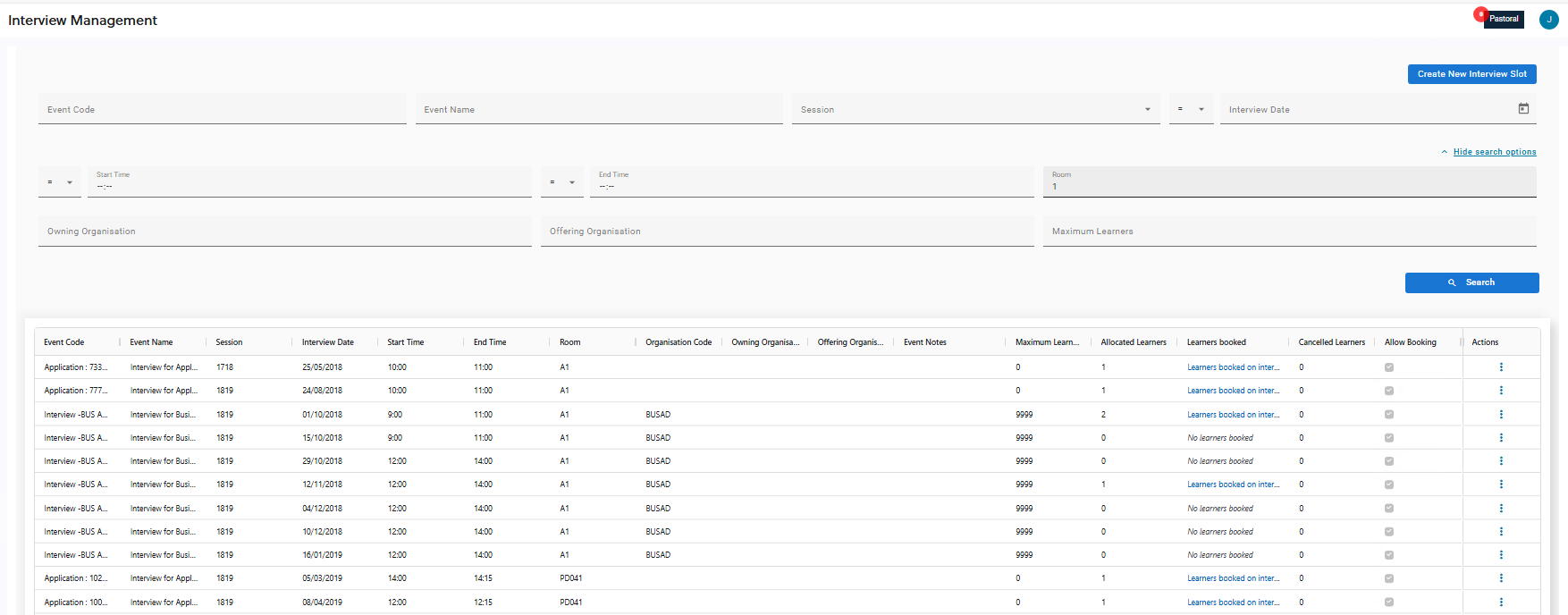
Interview management dashboard

A new landing page provides a single location where authorised staff can view all available interview slots and their details. Staff can search interview slots using structured filters such as event details, session, and date, with expanded filters for more precise searches.

Displayed Information Includes:

  • Event Code

  • Event Name

  • Session

  • Interview Date

  • Start Time

  • End Time

  • Room

  • Organisation Code

  • Owning Organisation

  • Offering Organisation

  • Event Notes

  • Maximum Learners

  • Allocated Learners

  • Learners booked

  • Cancelled Learners

  • Allow booking

Interview management

Create interview slots

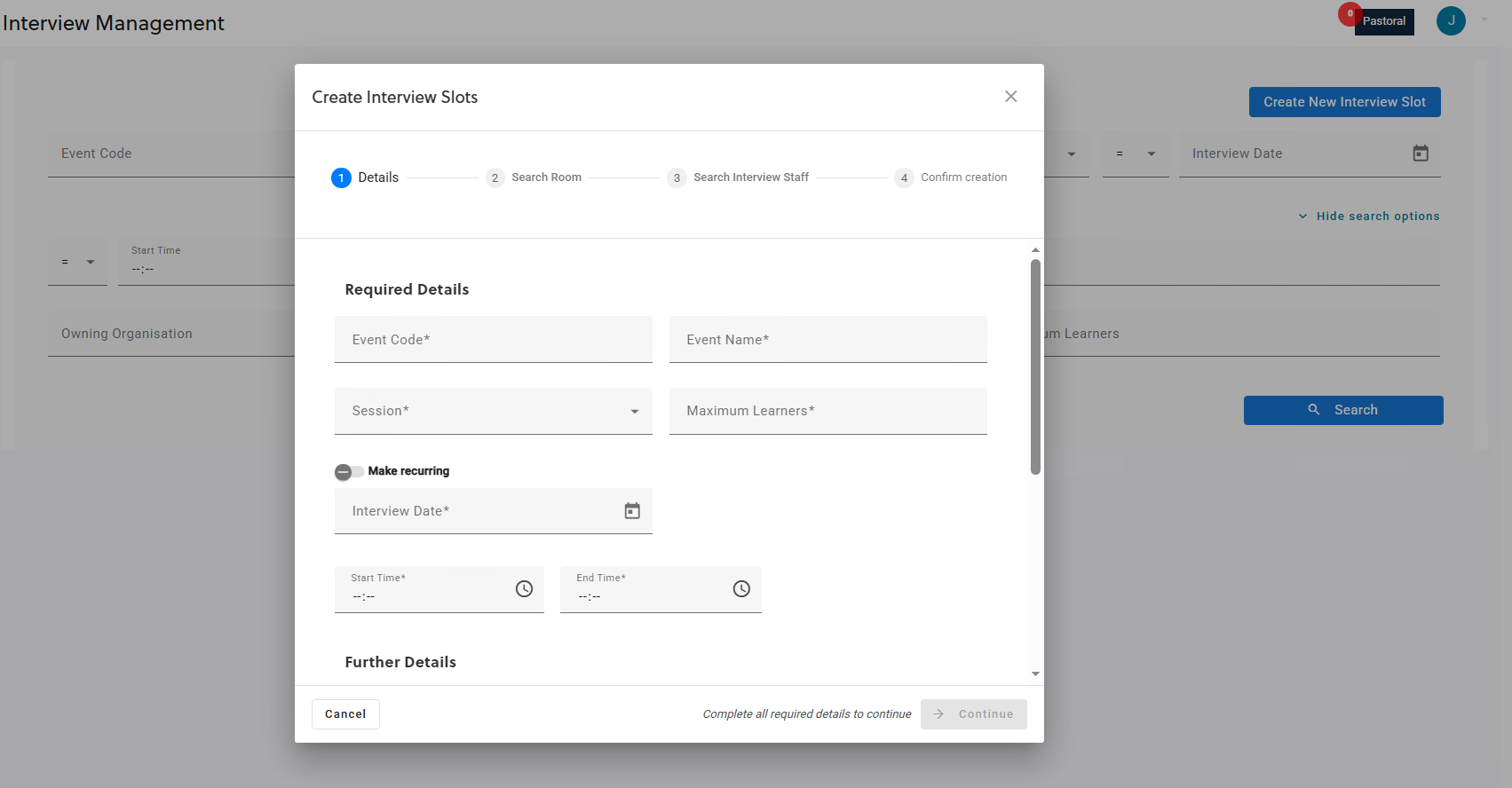
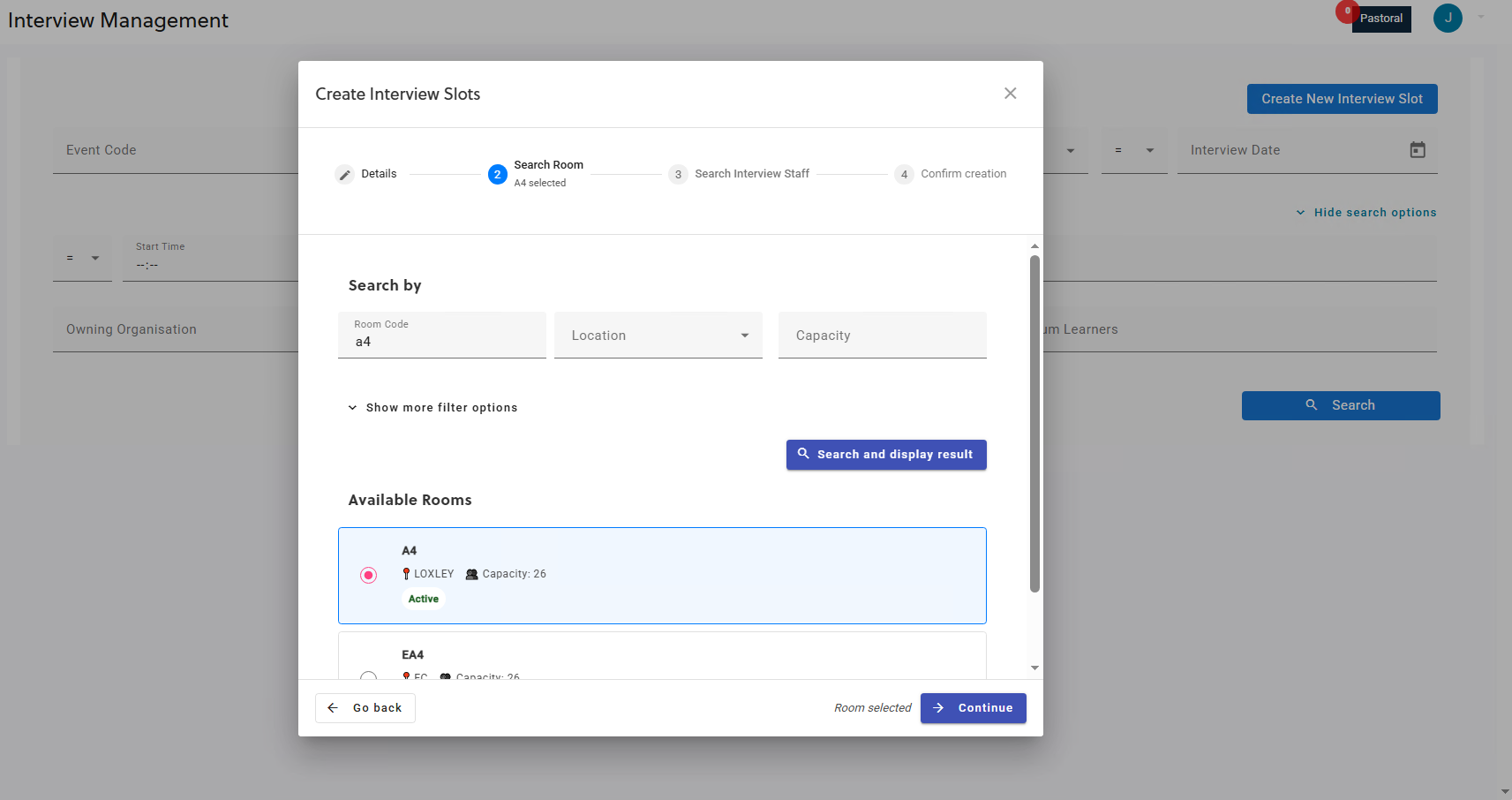
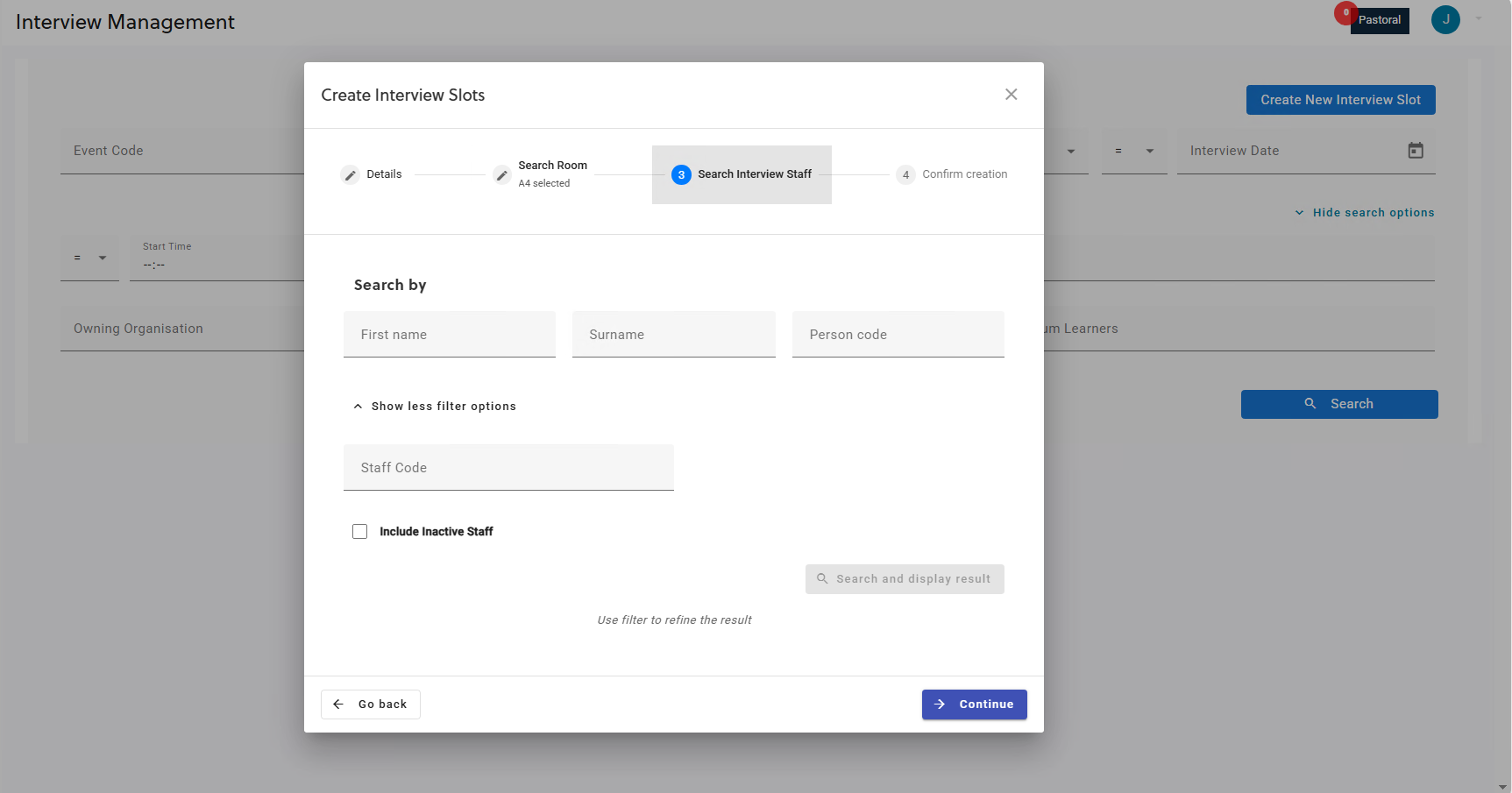
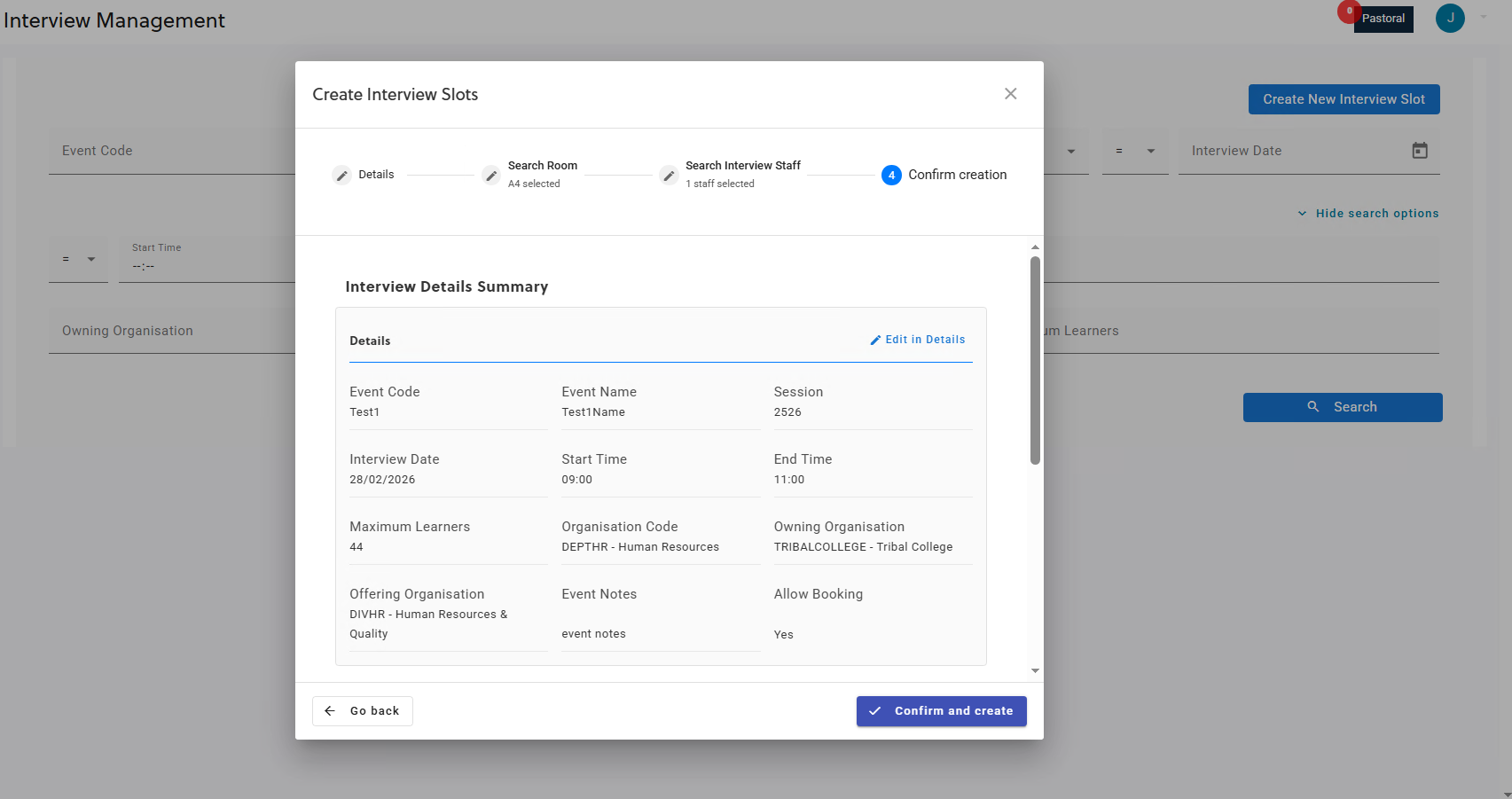
Staff can now create new interview slots using a guided four-step creation wizard:

Steps:

  1. Details

  2. Select room

  3. Select interview staff

  4. Confirm creation

Note that this is only available to staff with Create and Edit Interview Slots role. The steps in the process are as follows:

Details

The first step collects the core information required to define the interview slot, such as event code, event name, session, date, maximum learners, and so on.

Select room

Staff can search for and select a room using filterable search criteria such as room code, location, and capacity, with optional advanced filters available.

Search results display in batches to maintain performance. If more results exist, a Load More option appears to reveal additional matches.

Note that only one room can be selected.

Select interview staff

Staff can search for staff members using name or identifier filters. Additional optional filters allow more refined searches.

Multiple staff members can be selected, but selecting staff is optional. Staff may proceed without choosing any staff if desired.

Confirm creation

The final step presents a summary view showing all selected information in the previous three steps. Each section includes an edit option that returns the user directly to the relevant step to make adjustments.

Selecting Confirm and Create finalises the process, closes the modal, and immediately adds the new slot to the Interview Management grid.

Create interview slots

Create recurring or bulk interview slots

Staff can generate multiple slots at once using recurrence options. A summary of the recurrence pattern is displayed during confirmation so staff can review the schedule before creation. When confirmed, the system automatically generates all slots matching the defined pattern.

Interview management

Edit interview slots

After an interview slot has been created, staff can take the following actions from the interview management grid:

  • View or edit interview slot

  • Duplicate interview slot

  • Delete interview slot

  • View learners booked on a slot from

  • Control whether learners or staff can book the slot

Note that staff can also remove learners from an interview from Concierge.

Interview management

Room bookings
Header Business impact Affected topics

Room bookings

This release introduces a new room booking module in Ontrack Hub, allowing staff to create room bookings and add participants to either newly created or existing bookings.

The room booking module enables staff to do the following:

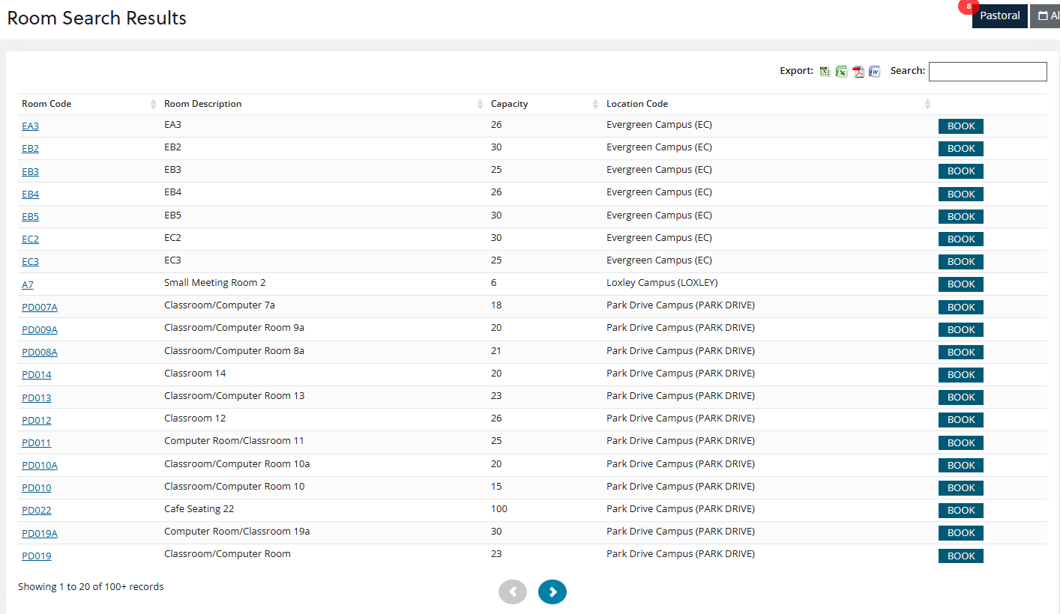
  • Search for available rooms directly from the Ontrack Hub homepage using the room search options. When a room is available, a book button is displayed in the search results, allowing users to initiate the booking process.

  • Create a booking for available rooms, time slots, and add other staff members to the meeting. Note that staff are notified through email when added to a booking.

  • View existing bookings and make changes to a room booking. Note that staff who have been added to a meeting can only view the booking.

Additional roles and institution settings are required for room bookings. For more information, go to EBS Central.

Room search

Staff links pane